Easy Guide to Connect a Bluetooth Printer to a Tablet for Receipt Printing (No Hassle!)
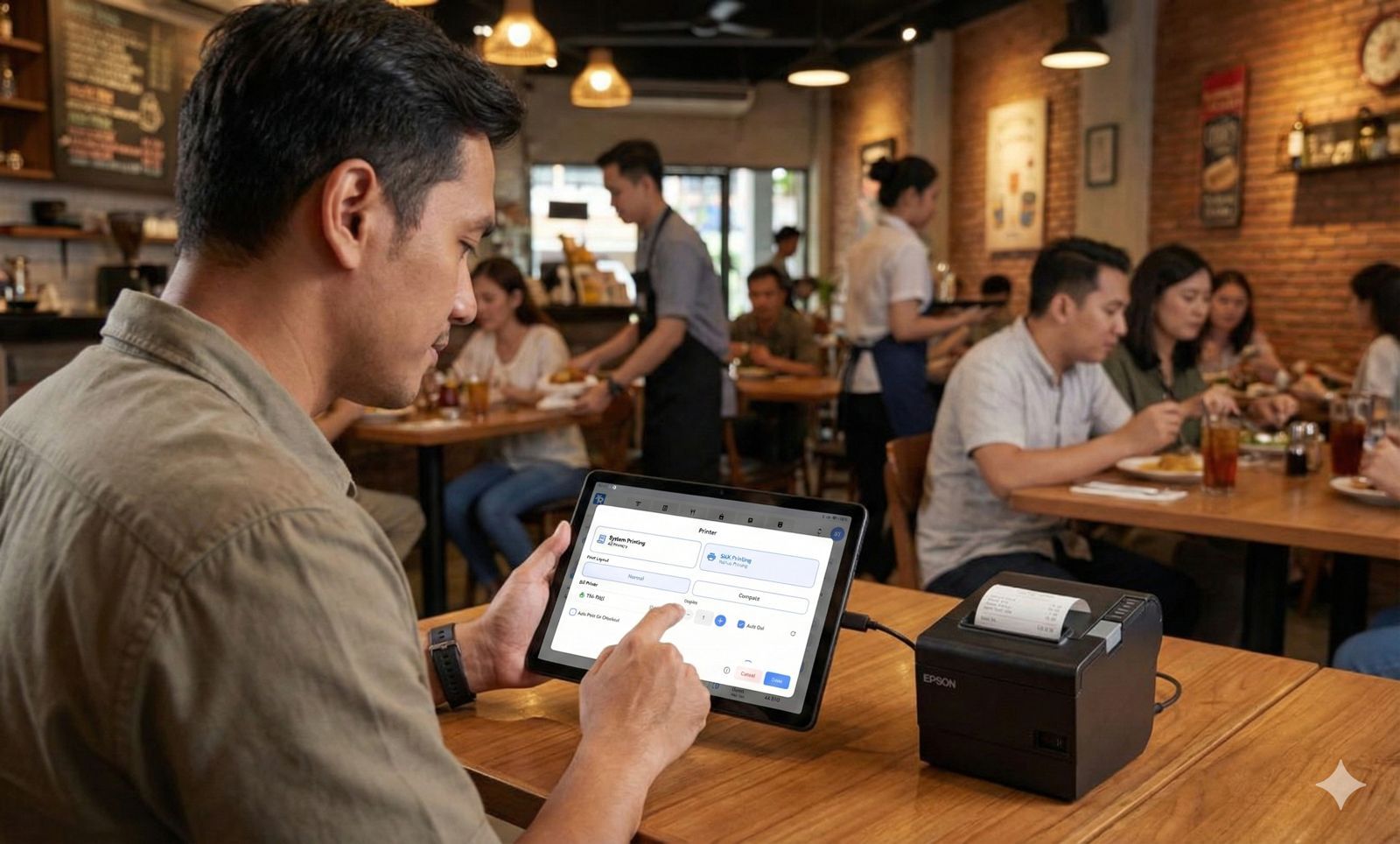
Read Also: SAVE PAPER & MONEY! How to Send Receipts via WhatsApp to Customers
In 2026, the minimalist cashier desk trend is dominating many business sectors. Transitioning from a manual cash register to a digital system using a Tablet as your operational center is a smart move for SME owners.
It is an essential POS device for SMEs that want to look professional. However, the biggest challenge is usually one thing: how to connect a Bluetooth printer to a tablet so receipt printing doesn’t freeze in the middle of a customer queue.
Many cashiers panic looking for solutions when the POS printer jams or wonder why the Bluetooth printer won’t print during peak hours. Without messy data cables, this is the modern wireless cashier solution you need. Let’s go through the complete guide to setting up your POS printer and printing receipts from a tablet without technical drama!
---
Basic Education: What Is a Thermal POS Printer and Why Use It?
If you’re just starting your business, you might wonder what a thermal POS printer is and how a Bluetooth printer works. Unlike home printers, the difference between thermal and dot matrix printers lies in the technology—it uses heat instead of ink.
Here are the reasons why you should use a thermal printer and the advantages of a Bluetooth POS printer compared to old systems:
- Ink-Free: Does a Bluetooth printer need ink? No. You can drastically reduce monthly receipt printing costs.
- Paper Difference: Understand the difference between thermal paper and regular HVS paper. Thermal paper has a special chemical coating that reacts to heat.
- Customer Trust: Even in the digital era, physical receipts remain important as valid proof of transaction.
- Industry Standard: A POS system with a Bluetooth printer is now the standard for F&B and retail businesses.
- Flexibility (With Limits): Be aware of Bluetooth POS printer limitations, such as signal range (usually up to 10 meters) and battery capacity for portable types.
---
Preparation Guide: Modern Café POS Equipment & Android Tablet
Before learning how to install a Bluetooth POS printer, make sure your hardware is adequate. Choosing the right hardware is crucial.
- Tablet Options: Many business owners look for affordable tablets for POS. Choose stable options like Samsung POS tablets or Lenovo tablets for POS. For Apple users, iPads for cafés are very popular—just make sure you choose a compatible Bluetooth receipt printer for iPad.
- Cash Drawer: As part of your cashier setup besides the printer, understand how a cash drawer works. It connects directly to the printer via an RJ11 cable and opens automatically when a receipt is printed.
- Printer Size: Know the difference between 58mm and 80mm receipt printers. A 58mm Bluetooth thermal printer is perfect for minimarkets, while an 80mm Bluetooth auto-cutter printer suits restaurants. What is auto-cutter? It automatically cuts the receipt. The advantage? Cleaner receipt edges without manual tearing.
- Popular Brands: For high mobility, a mini Bluetooth receipt printer is highly recommended. Many users search for setup guides for Panda printers, Xprinter Bluetooth setup, Eppos printer connection to tablet, Epson Bluetooth setup, Iware POS printer, Zjiang Bluetooth Android printer, VSC Bluetooth printer setup, Bella POS printer setup, Blueprint thermal printer setup, Kassen Bluetooth pairing, and Matrix Point printer setup.
---
Complete Tutorial: How to Connect a Thermal Printer to a Tablet
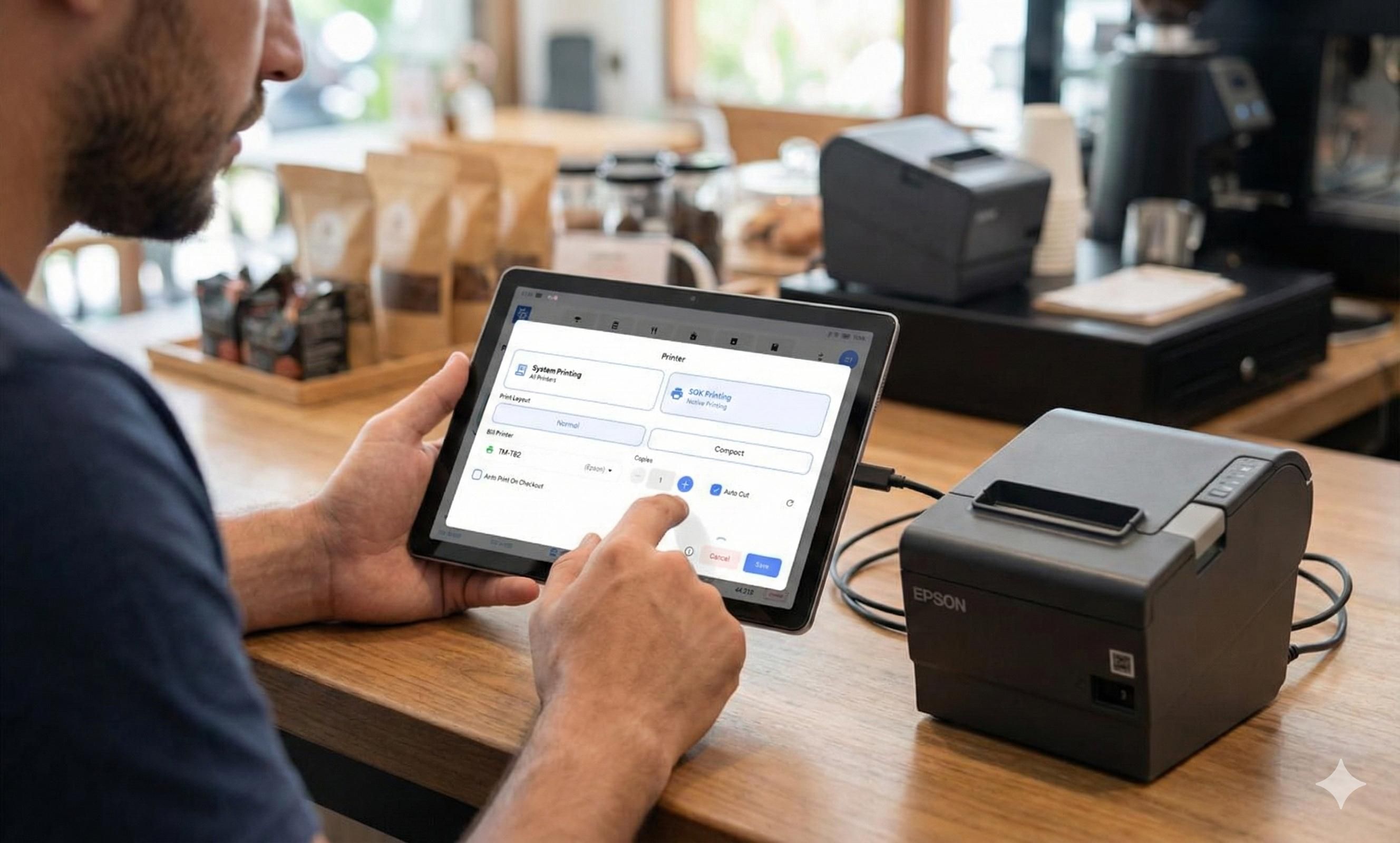
Read Also: Complete Warehouse Stock Opname Guide: SOP, Steps & Report Examples
To optimize your POS hardware setup, follow this POS printer configuration guide. Many people are confused about Bluetooth vs WiFi printer connections, but Bluetooth remains the easiest wireless printer connection method.
Step 1: Turn On the Device
Learn how to turn on your Bluetooth POS printer and how to make the printer’s Bluetooth name visible (usually it broadcasts automatically).
Step 2: Pairing Process
On your tablet, enable Bluetooth and search for the printer name. This is the Bluetooth thermal printer pairing process. If prompted for a code, enter the default PIN (0000 or 1234). This ensures a secure connection between your tablet and receipt printer.
Step 3: Advanced Connection
If you use multiple devices, you can connect the printer to two phones or connect two POS tablets to one Bluetooth printer alternately. Don’t forget to connect the cash drawer via the RJ11 port at the back of the printer.
Step 4: Test Print
Perform a test print by printing a sample receipt. For Android, connect via Bluetooth; for iOS/iPad, follow the Bluetooth printer setup instructions. To test print, hold the feed button while turning on the printer.
---
Paper & Battery Maintenance Guide
Maintaining your printer physically is as important as maintaining the app connection.
Thermal Paper
Know standard receipt paper sizes: 58x38 and 80x80. Learn the correct way to insert thermal paper (paper roll should feed from bottom to top). Proper maintenance extends the lifespan of your POS printer.
Paper Management
Use optimized fonts to save paper. Replace thermal paper when the red line appears on the roll. Be aware that thermal receipts can darken under excessive heat. Store thermal paper properly to prevent fading. Why does thermal print fade? Usually due to friction or direct sunlight.
Battery & Additional Functions
Ensure your portable POS printer battery lasts long. Learn how to check battery levels and properly charge your Bluetooth printer, especially if used for bazaars. You can also use POS printers to print shipping labels by adjusting paper size settings.
---
Troubleshooting: Printer Not Detected on Tablet?
If you face connection issues, don’t panic. Here’s a quick solution table:
| Problem | Common Cause | Practical Solution |
|---|---|---|
| Printer Not Showing | App permissions incomplete | Enable Location & Bluetooth permissions |
| Pairing Failed | Wrong PIN | Use 0000 or 1234 |
| Connection Drops | Too far/interference | Keep within 5 meters |
| Connected but Not Printing | Bluetooth cache issue | Unpair and reconnect |
| Blinking Indicator | Paper/cover issue | Reinstall paper & close cover tightly |
Common Connection Issues:
- Printer not detected → Restart Bluetooth or reset connection.
- Frequent disconnection → Low battery or signal interference.
- Pairing rejected → Forget device and reconnect.
- Printer offline → Check IP settings (LAN/WiFi mode).
Paper & Print Issues:
- Blank receipt → Paper inserted upside down.
- Paper jam → Remove carefully to avoid gear damage.
- Faded print → Clean thermal head with cotton bud + alcohol.
- Random characters → Baudrate mismatch; restart printer.
- Receipt cut in half → Adjust paper width in POS app.
- Infinite printing → Turn off printer & clear print queue.
Internal Hardware Issues:
- Continuous beeping → Paper empty or cover not closed.
- Overheating → Possible battery defect.
- Cash drawer not opening → Check RJ11 cable & POS settings.
POS App Issues:
- Cannot print receipt → Force close and reopen app.
- Slow printing → Tablet RAM may be full.
- App crashes during print → Update POS app.
- If all fails → Claim warranty with vendor.
---
Upgrade Your Business with ReBill POS
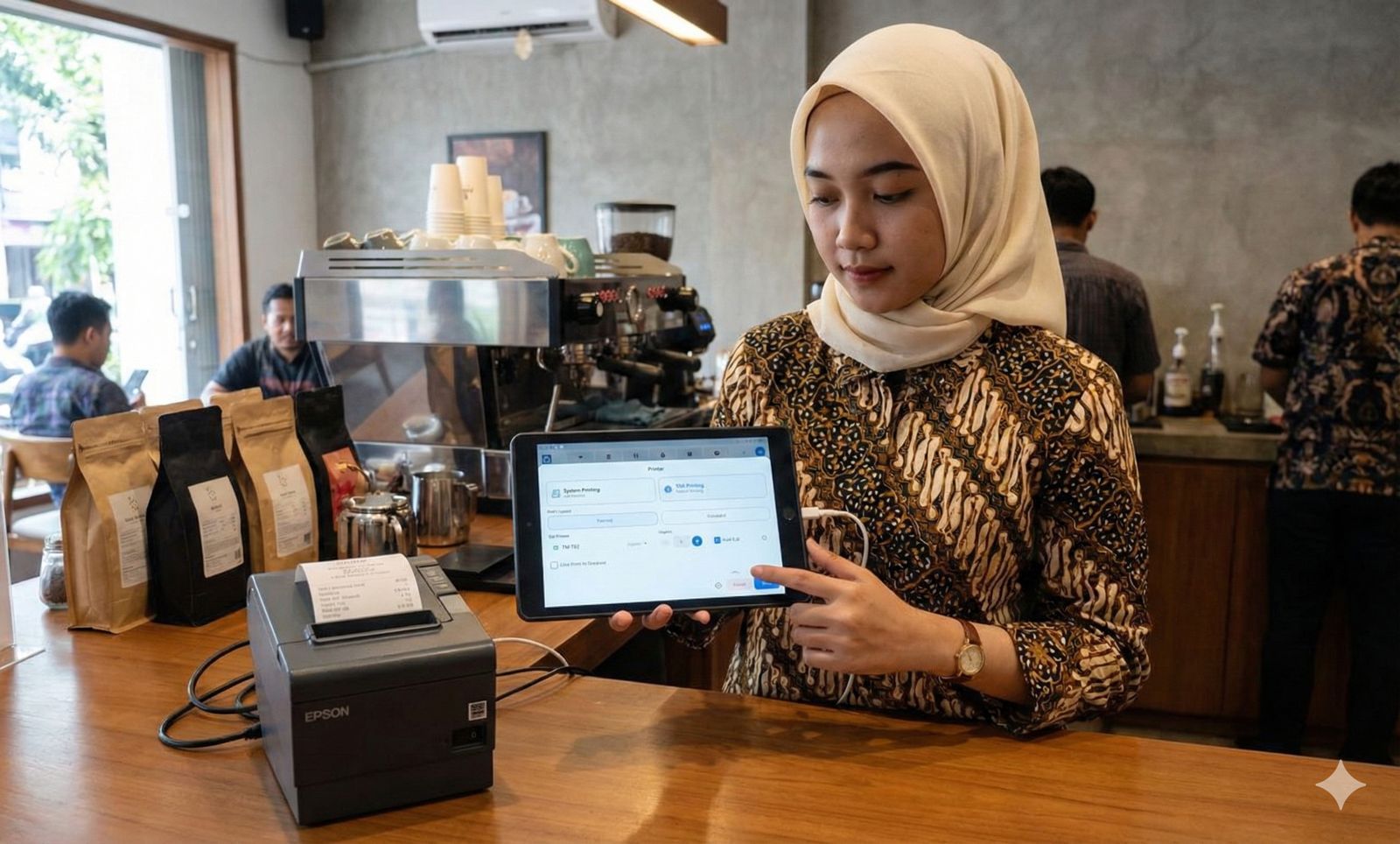
A reliable hardware system must be supported by smart software. You need a POS application that supports Bluetooth printers seamlessly.
With ReBill POS, printing receipts from your Android cashier app is extremely easy. It is one of the best POS apps supporting thermal printers.
Why Choose ReBill POS?
- Business Flexibility: Perfect for restaurants, cafés, minimarkets, retail stores, and kitchen printers.
- Advanced Features: Automatic receipt printing, supports all printer brands, even iOS Bluetooth printer setup.
- Receipt Customization: Change receipt format, add logo, header/footer, cashier name, bold store name, add customer notes, tax & service charge settings.
- Kitchen & Online Integration: Split kitchen orders via Bluetooth and print online delivery receipts (GoFood/GrabFood).
- Digital Receipt & EDC: Send receipts via WhatsApp without printing paper. Print double copies if needed.
- Reliable: Works offline and syncs automatically. Time and date settings auto-sync.
- Complete Hardware Solution: Fully integrated POS for Android tablets with easy printer setup.
Learn how to connect your Bluetooth printer to the ReBill POS app in our help center.
---
Conclusion
Connecting a printer to your tablet is not difficult if you follow the correct steps. With Rebill Point of Sale (POS), printing shopping receipts from your tablet becomes easier, faster, and completely hassle-free.
Want to try it now?
Don’t let long queues build up because of printer problems. Try the Free Rebill POS Demo and experience managing your business with a world-class POS system today!